🏥 Appointments
Schedule patient appointments with doctors and track each appointment through to completion.
Navigate to Hospital → Appointments.
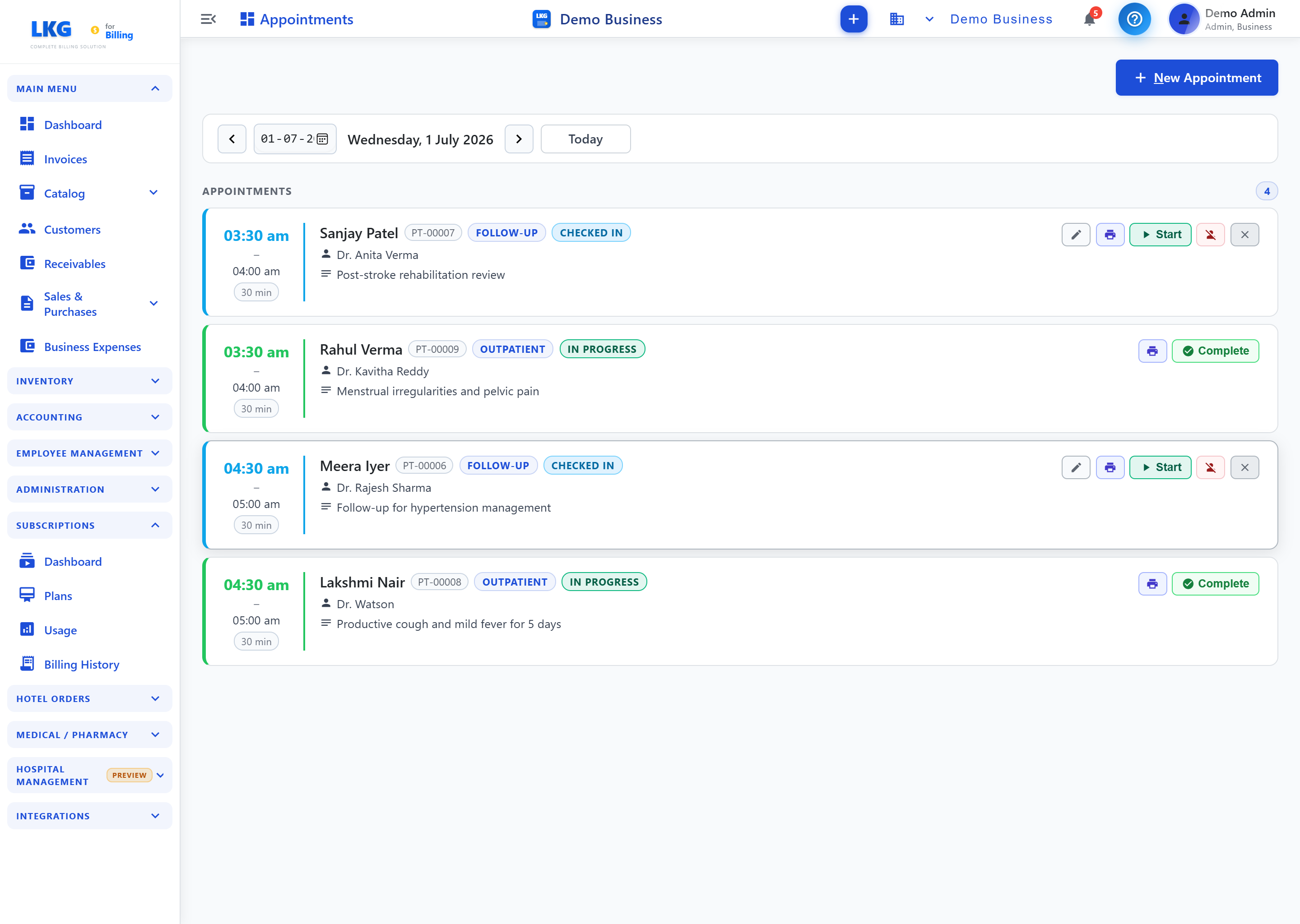
Date Navigation
| Control | Description |
|---|---|
| ◀ / ▶ | Move to the previous/next day |
| Date picker | Jump to a specific date |
| Today | Reset to the current day |
The Appointments panel header shows a count badge for the number of appointments on the selected day.
Appointment Card
Each appointment card shows:
| Field | Description |
|---|---|
| Time | Start–end time and duration (e.g., 03:30 am – 04:00 am, 30 min) |
| Patient Name & ID | Patient name with their patient ID (e.g., PT-00007) |
| Type | Appointment type badge (e.g., Follow-Up, Outpatient) |
| Status | Status badge (e.g., Checked In, In Progress) |
| Doctor | Attending doctor's name |
| Notes | Chief complaint or visit reason |
Actions
Available actions depend on the appointment's status:
| Button | Shown On | Action |
|---|---|---|
| Edit (pencil) | Checked In | Edit appointment details |
| Checked In / In Progress | Print the appointment slip | |
| Start | Checked In | Begin the consultation — status moves to In Progress |
| No Show | Checked In | Mark the patient as not arrived |
| Cancel (✕) | Checked In | Cancel the appointment |
| Complete | In Progress | Mark the consultation as done |
Scheduling an Appointment
Click + New Appointment to open the booking form and schedule a new appointment for a patient.